


MagnolIA for VS Code: a coding assistant running on your own server.
An extension that brings into the editor your MagnolIA Server's models, Claude Code terminals with MagnolIA's skills and MCP servers, and the board and memory that Nexus agents share.
MagnolIA for VS Code is an extension that brings your MagnolIA Server's models into the editor: a chat about your code, Claude Code terminals preconfigured for your server, skills and MCP connectors. Requests go to your server with your key, which is kept in the system's secure storage.
- Editors
- VS Code 1.96 or later, Cursor and VSCodium, on macOS, Windows and Linux.
- Installation
- From a .vsix file that is not on the Marketplace: users with access find it in the Downloads section of their MagnolIA panel.
- Your repository
- The extension does not touch .mcp.json or CLAUDE.md and leaves no temporary files.
A regular VS Code extension, with all of MagnolIA inside.
It talks to the same server API that Nexus uses and sets up Claude Code to work against your server in whichever project you have open. Servers and models, terminals, chat, panel and the project's world sit in a single sidebar.
Requests go to your server with your key, which is kept in the system's secure storage and never in the settings.
- Format
- .vsix file
- Editor
- VS Code 1.96 or later; also Cursor and VSCodium
- Systems
- macOS, Windows and Linux
- Dependencies
- None
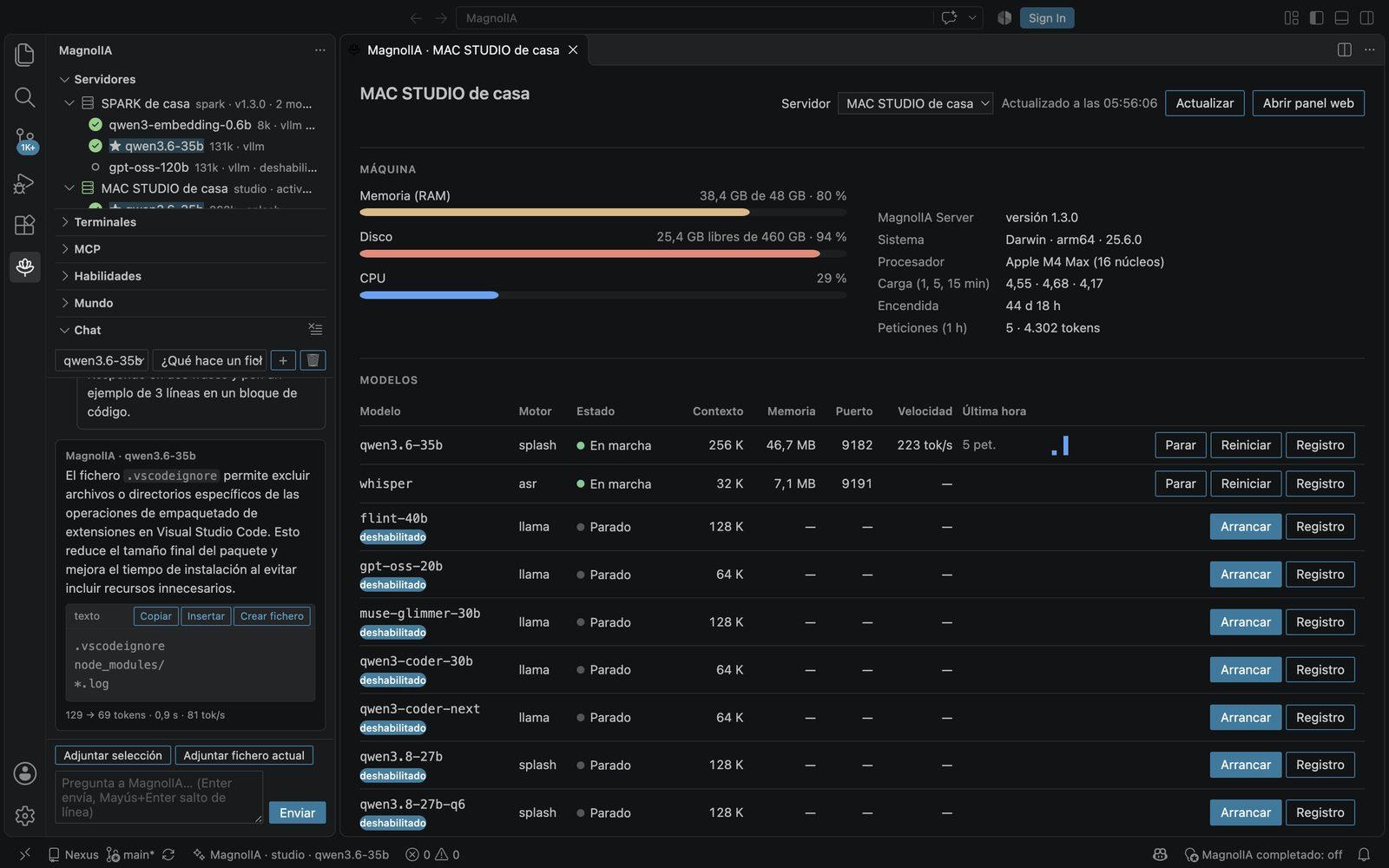
Six pieces in one sidebar.
- 01
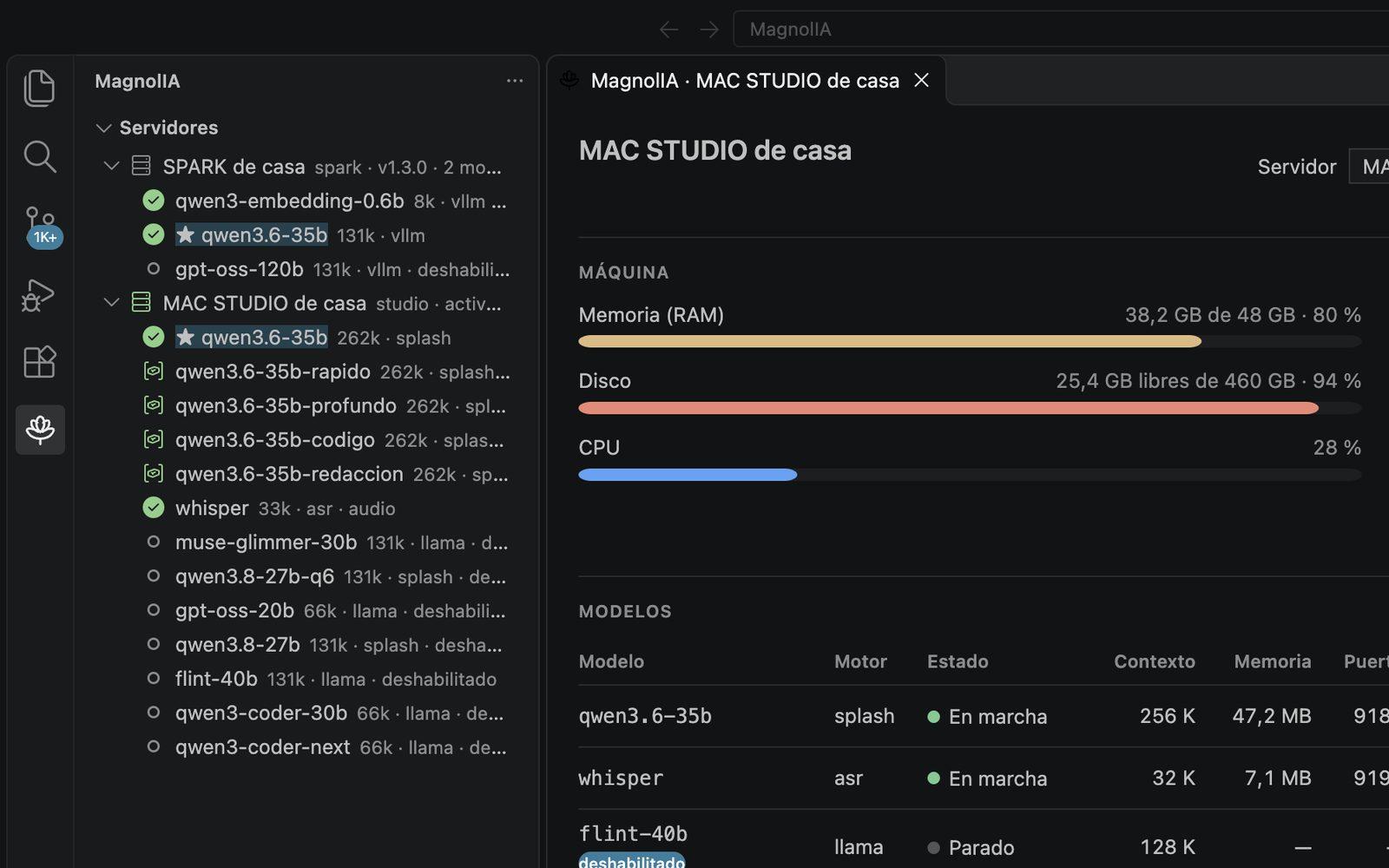
Servers and models
A tree with your servers and their models: which ones are running, their context window and which one you have chosen. The status bar always shows which server and model you are working with.
- ›Choose a model, and start, stop or restart models with an administrator key.
- ›Several servers, each with a main address and a fallback address through a tunnel.
- ›If the server uses its own certificate, the extension downloads its CA and carries on by itself.
- 02
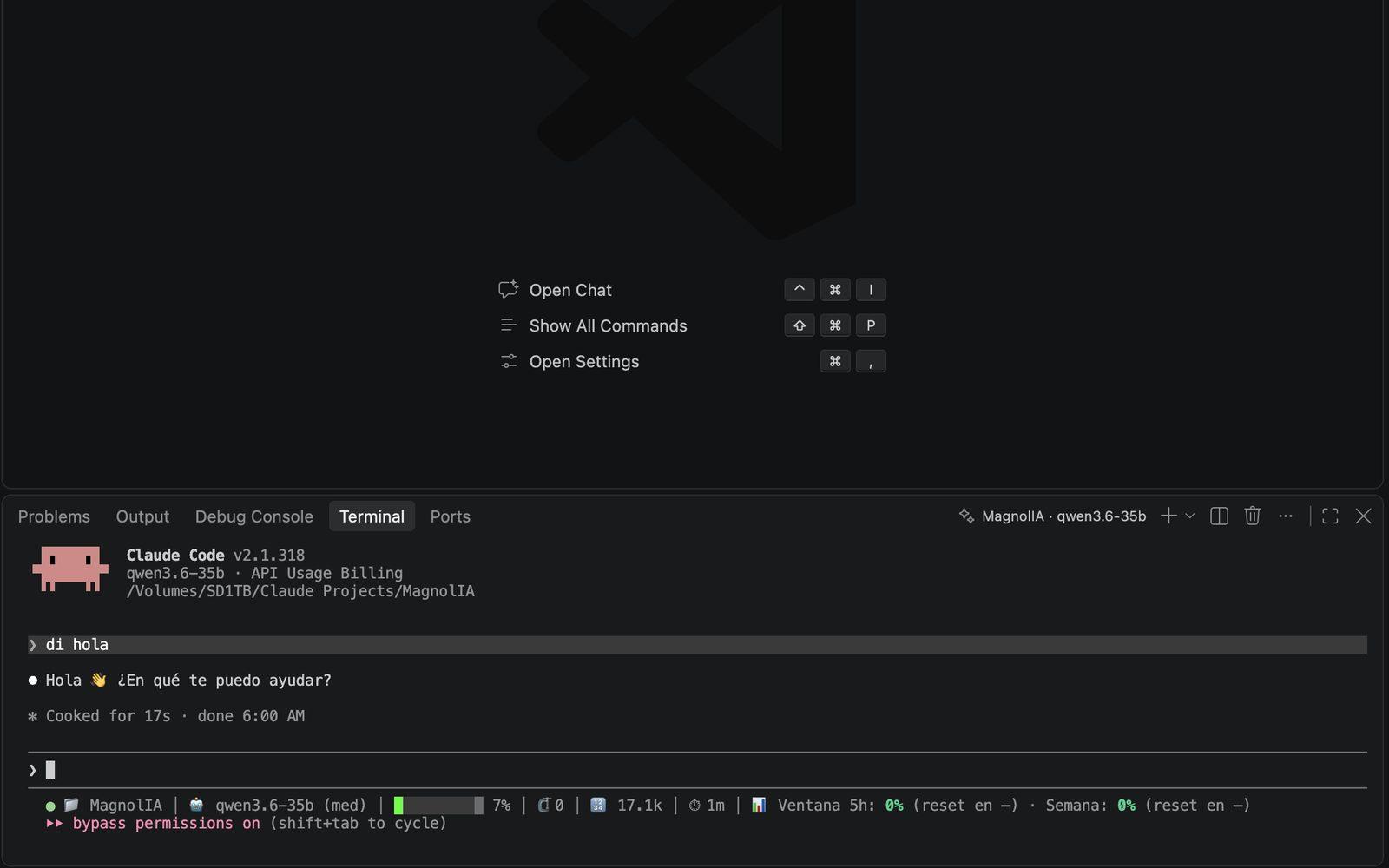
Claude Code terminals
⌘⌥M (Ctrl+Alt+M on Windows and Linux) opens an integrated terminal with Claude Code already set up for your server: the chosen model, its own configuration that leaves yours untouched, the MagnolIA style and the active skills and MCP servers.
- ›Terminal with a task: Claude Code starts with the brief you give it.
- ›Resume any earlier session of the project.
- ›Permissions as in Nexus, or approve each action if you prefer.
- ›Also with your Anthropic account, with the same skills and MCP servers.
- 03
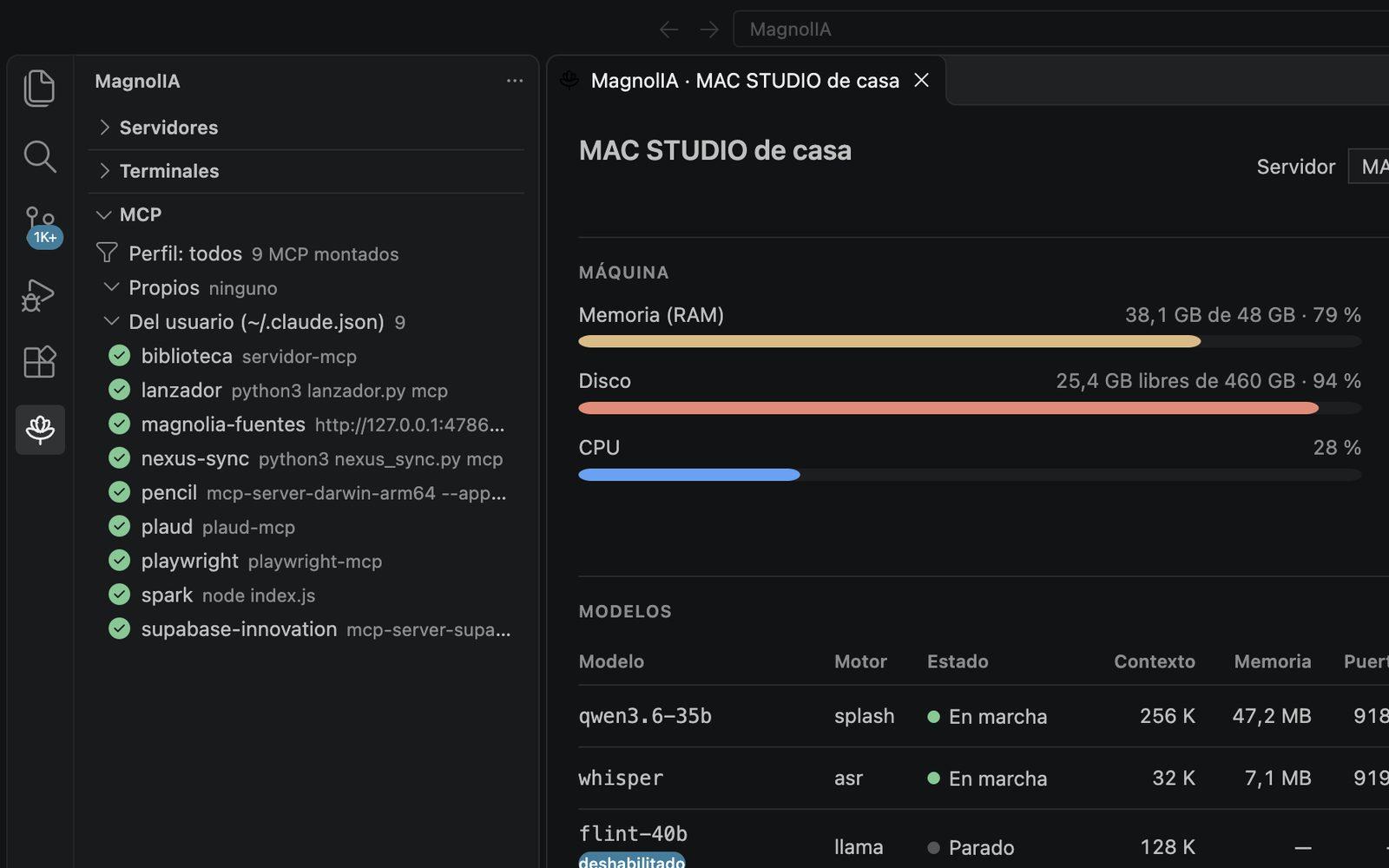
MCP
It gathers MCP servers from four sources: the extension's own, your Claude Code user's, the project's .mcp.json and plugins. Each one is enabled, disabled or tested with a button.
- ›Testing an MCP server starts it and lists its tools.
- ›Light or none profile, so local models do not spend context on them.
- ›Changes apply to the terminals you open afterwards.
- 04
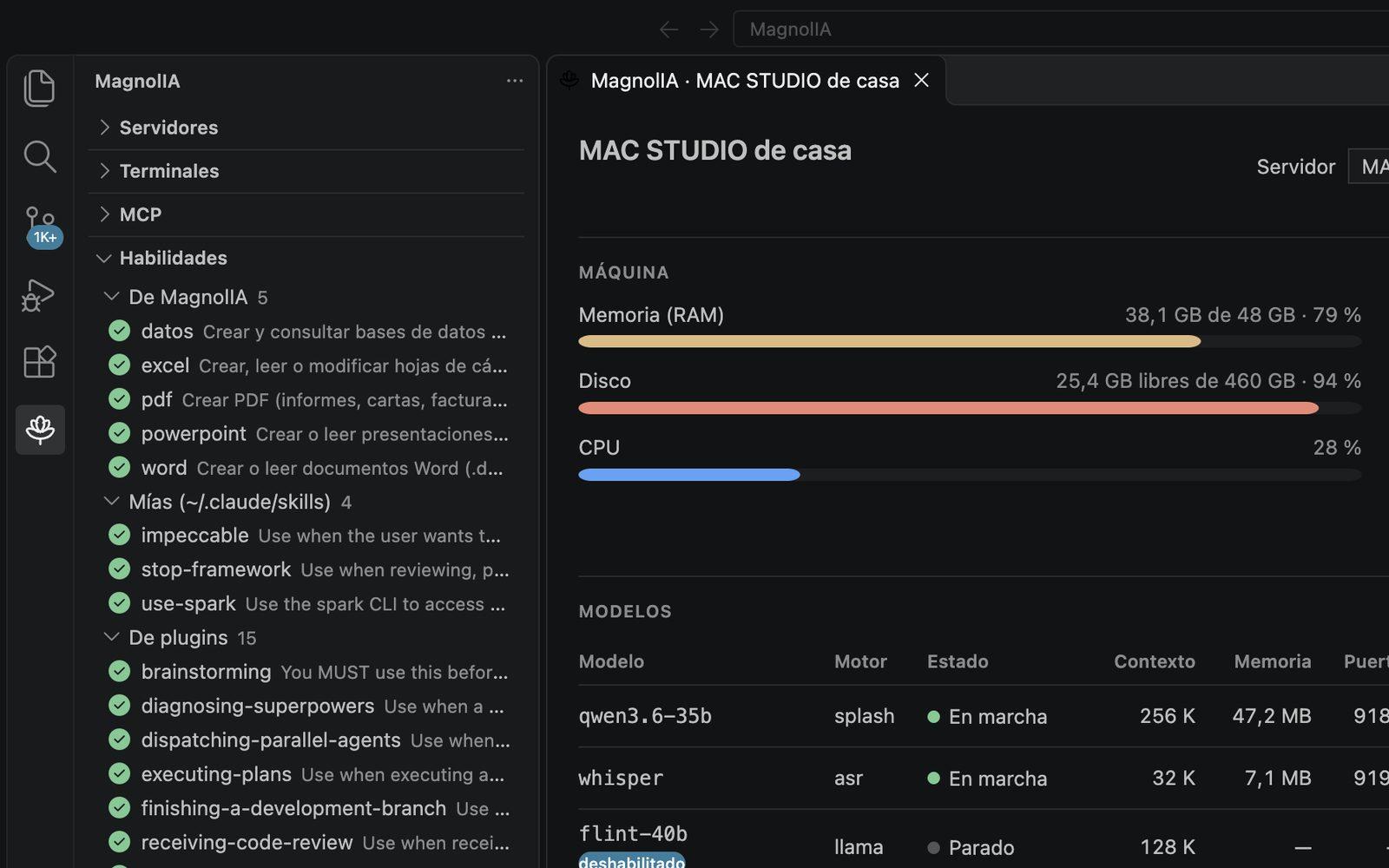
Skills
It ships with skills for Excel, Word, PowerPoint, PDF and data, with their own Python set up the first time. Alongside them it mounts yours, the project's and those from plugins.
- ›If two share a name, yours takes precedence over the repository's.
- ›Create a new skill, for yourself or for the project.
- ›Enable and disable each one.
- 05
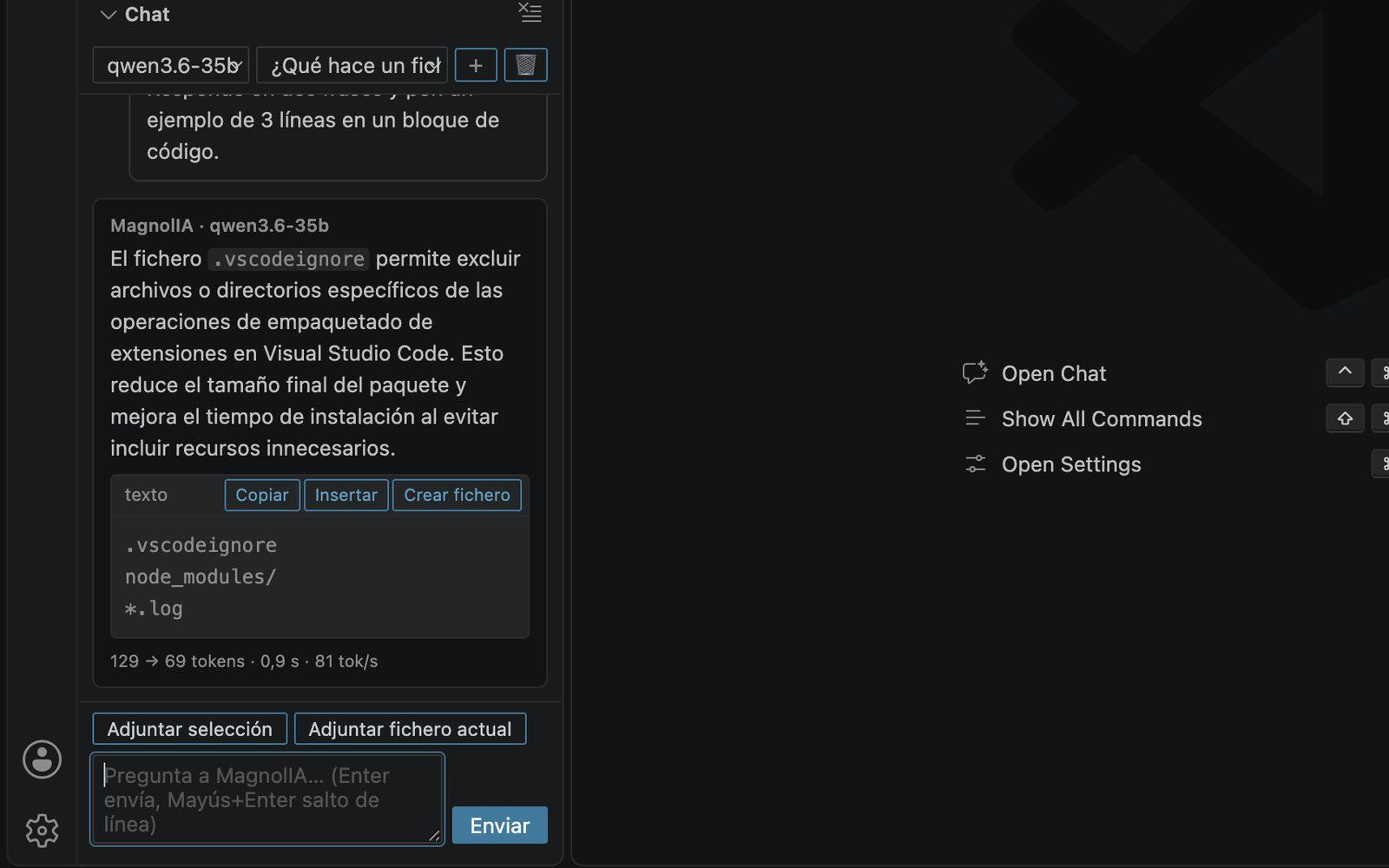
Chat and editor
A chat in the sidebar with the active server's model: streamed answers, reasoning in a collapsible panel and code blocks you can copy, insert at the cursor or save as a file.
- ›On the selection: ask, explain, refactor with a diff, write tests and fix the file's errors.
- ›Optional inline completion, using the server's fast model.
- ›Conversation history per project.
- 06
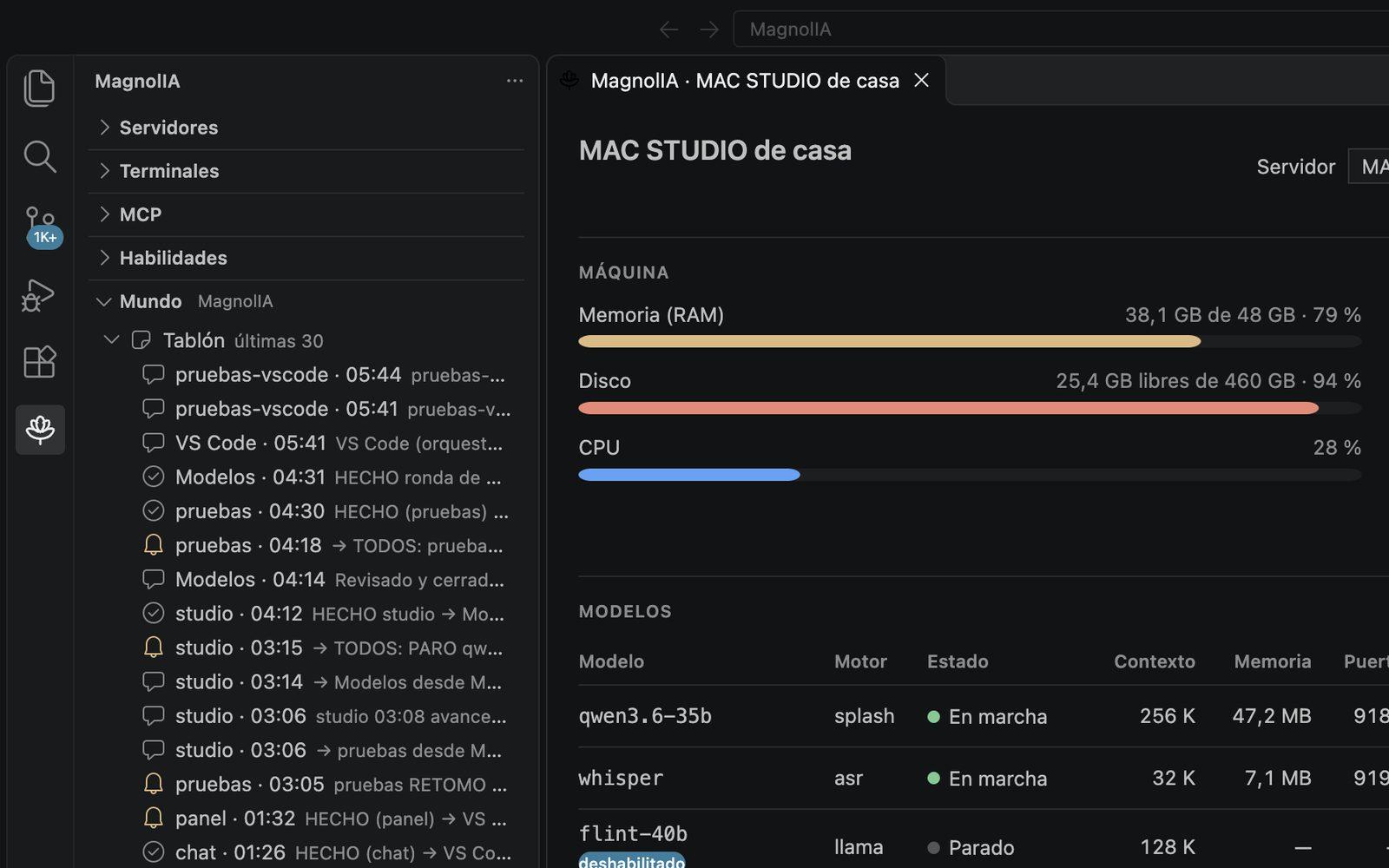
Panel and World
The panel shows the machine (memory, disk, CPU and GPU), the models with their actions and speed, and usage per user and per model. The World view reads the board, team and memory that Nexus keeps in the project.
- ›It refreshes only while it is in view.
- ›API keys appear only with their label and prefix, never in full.
- ›Post to the board from VS Code to notify one agent or the whole team.
It reads your project. It barely writes to it.
The folder you have open is the project for Claude Code. The extension takes what it needs from it and keeps everything it generates outside the repository.
What it reads
- Working folder
- The open file's folder or the first one in the workspace: the terminals work there and Claude Code saves its sessions there.
- Project MCP servers.mcp.json
- They appear in the MCP view as the project's.
- Project skills.claude/skills
- Mounted alongside yours and the built-in ones.
- Nexus world.magnolia/
- Board, team and memory, read exactly as Nexus writes them.
- Sessions
- Earlier Claude Code conversations in that folder, ready to resume.
What it writes
- ›A line in .magnolia/tablon.md, only if you post something from the World view. It never deletes.
- ›Whatever you ask for: a file from the chat, tests next to the original, a skill for the project, or what Claude Code writes as part of its work.
It does not touch .mcp.json or CLAUDE.md, does not create configuration folders in the repository and leaves no temporary files. Everything it generates lives in ~/.magnolia/vscode.
Install MagnolIA for VS Code
It installs from the .vsix file. It is not on the VS Code Marketplace or available for public download: users with access find it in the Downloads section of their MagnolIA panel. New versions install over the previous one, keeping settings and keys.
Requirements
- MagnolIA Server
- A server you can reach (local network, a private network or a tunnel) and an API key. Without a server, the terminals can use your Anthropic account.
- Claude Code
- For the terminals. It installs with one command:macOS and Linux
curl -fsSL https://claude.ai/install.sh | bashWindows (PowerShell)irm https://claude.ai/install.ps1 | iex - Python 3
- For the Excel, Word, PowerPoint, PDF and data skills. The extension sets up its own environment the first time.
On macOS
- 01In VS Code, open Extensions ▸ ⋯ ▸ “Install from VSIX…” and choose the downloaded file.
- 02Click the MagnolIA flower in the activity bar and add your server with its key.
code --install-extension MagnolIA-VSCode.vsixOn Windows
- 01In VS Code, open Extensions ▸ ⋯ ▸ “Install from VSIX…” and choose the downloaded file.
- 02Click the MagnolIA flower in the activity bar and add your server with its key. Claude Code on Windows also needs Git for Windows.
code --install-extension MagnolIA-VSCode.vsixFrequently asked questions about the VS Code extension
What does the MagnolIA extension for VS Code do?
The MagnolIA extension for VS Code brings your MagnolIA Server's models into the editor: a chat about your code, Claude Code terminals preconfigured for your server, skills and MCP connectors, the machine panel and the Nexus board and memory for the open project. Requests go to your server with your key, stored in the system's secure storage.
Does it work with Cursor or VSCodium?
Yes. The MagnolIA extension works in VS Code 1.96 or later and also in Cursor and VSCodium, on macOS, Windows and Linux. On Windows, Claude Code also needs Git for Windows. It installs from a .vsix file and new versions install over the previous one without losing settings or keys.
Is the extension on the VS Code Marketplace?
No. The MagnolIA extension for VS Code installs from a .vsix file that is not on the Marketplace or publicly downloadable: users with access find it in the Downloads section of their MagnolIA panel. New versions install over the previous one without losing settings or keys.
Does the extension write to my repository?
Very little. The MagnolIA extension for VS Code only adds a line to the project board if you post something from the World view, and it writes what you ask for: a file from the chat, some tests or whatever Claude Code produces as part of its work. It does not touch .mcp.json or CLAUDE.md and leaves no temporary files.